You may be wondering that by now, i.e., the event of Windows 10 you probably know all about ‘how to computer’. Guess what, there is still plenty to learn. Microsoft’s Windows OS is a work of intricate patchwork and finely tuned features. We probably heard lot about engineers work their way in to give you a one-of-a-kind tech experience with a killer software mix which involves a tad bit more understanding of the complex system’s configuration.
How do we then use our personal computer or laptop with a shortcut for every task? Like a quick spell to pin a file folder to the taskbar, type in documents without using the keyboard, or access ‘send to’ menu?
Well, beat the stress out since perks of technology are out in plenty. And we have got you the secret sauce to windows’ operating system. This will sort you out in a jiffy! These hidden keyboard shortcuts are a sure shot to easier work flows and enhanced productivity for newbies.
Quick Overivew
Taskbar Shortcut
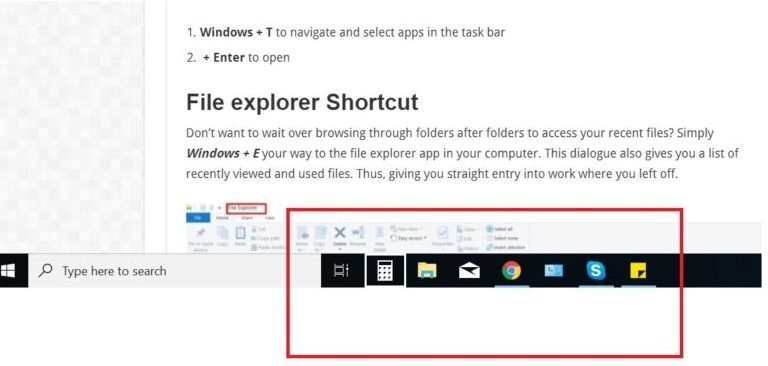
Transition swiftly between tabs with this quick tips or open an important app without a mouse. The taskbar shortcut easily opens your preferred destination app in two steps.
- Windows + T to navigate and select apps in the task bar
- + Enter to open
File explorer Shortcut
Don’t want to wait over browsing through folders after folders to access your recent files? Simply Windows + E your way to the file explorer app in your computer. This dialogue also gives you a list of recently viewed and used files. Thus, giving you straight entry into work where you left off.

Rename Bulk Folders
Have a lot of files to be renamed and in order? Then select, or highlight the files whose title needs to be reworked on. Press F2 key. Type in the name you want in the first file/folder, then hit enter. This way all the files will be renamed in a particular order without you having to renaming each of them separately. To reverse the change use the undo shortcut (CTRL + Z), in case of error.
Peer Sharing
Just like apple’s airdrop, Windows 10 brings you the benefit of peer sharing with its nearby sharing feature. Wherein any open document or photo can be instantly accessed by devices around yours with the click of a button. Select the share icon in the topside of the doc or photo, press Turn On Nearby Sharing and voila! Access open devices in the same range as yours.
Delete not Recycle
Don’t want to go through the extra hustle of first recycling and then deleting junk files? Straight away delete unimportant files with the bypass shortcut. Press Shift + Delete, then Shit + Enter to confirm.
Save booting time
Bypassing windows splash screen gives you a breather of quicker boot seconds. Meaning you can help your computer end booting sessions faster by cutting down overall clocking time. How do you do it? Start Windows, run command by pressing Windows+R, type in msconfig, click on boot.
There you will see the No GUI boot option, deselect it, click on OK and Apply to save the changes.

Screenshot in Apple Style
Now you can say goodbye to additional screen grab apps like snipping tool. As windows officially has an update which is close to its macOS competitor. To capture a screenshot input Shift+windows key+s and you will have a full-screen or rectangular image of the desired page.
Extensive clipboard
The single function clipboard has been finally revamped by Microsoft engineers and it is such a relief! The latest update lets you save multiple items to the clipboard and access the copied data history. To unlock the feature go to Settings > System > Clipboard.
Focus Assist
Bringing a new twist to the previous Quiet Hours, Windows’s now Focus Assist gives you enhanced control on pop-up notifications. So you can customize notifications as per your liking. To edit functions go to Settings > System> Focus Assist. Select from the drop down options to sort notifications for contacts, alarms and other apps from the list.

Smart Home
Word is that with the new packet of updates in Windows 10’s you can control all your smart devices. The brand’s AI assistant, Cortana comes at your service here. Only catch here: instead of the previous Connected Home look for Cortana Notebook which will open a list of tasks you can assign Cortana to take care for you. Such as reminders, meetings, among others.
Click on the Manage Skills tab in Settings, scroll down to Smart Home, log-in to smart devices you want to set tasks for. Like Nest, SmartThings, Ecobee, Honeywell, and Hue. And your home tasks will be synced in to your preferences, managed by Cortana.
Speech Writing
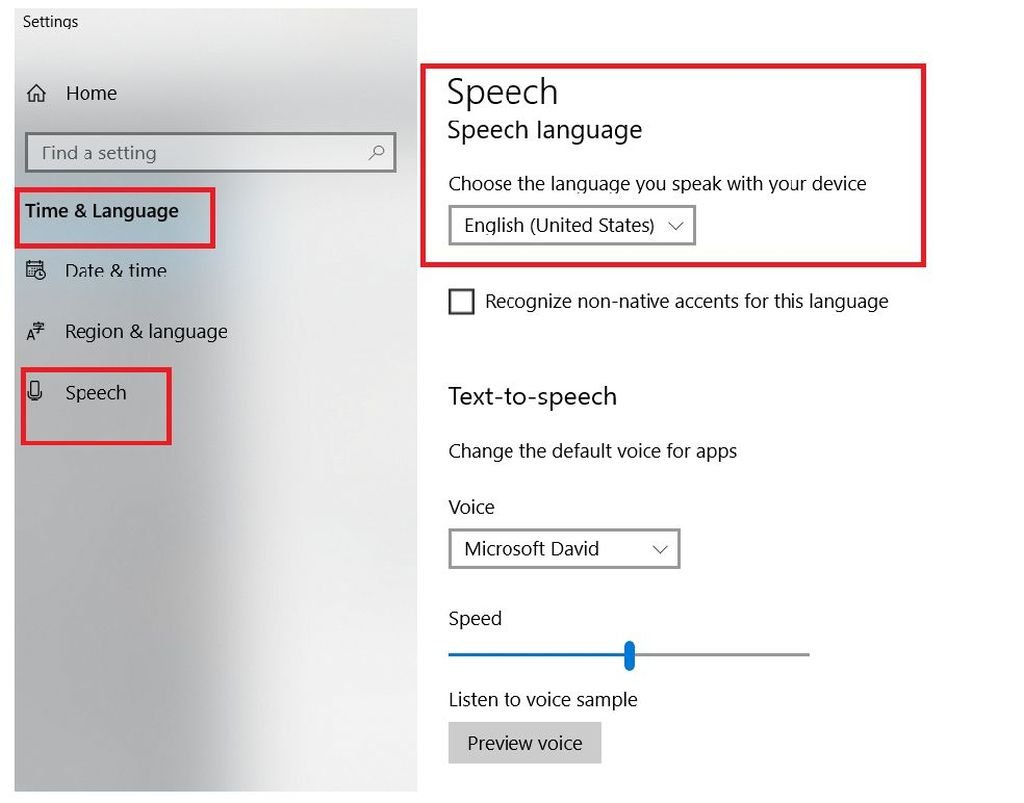
Why waste time typing when you can dictate your computer to take notes? Speech Recognition has been a recommended feature of Windows and continues to be so. To enable it head to Time & Language > Speech > Related Settings and select Speech inking & Typing Privacy settings.
Post that use the Windows+H hotkey to save the speech recognition pop-up anywhere you want to input text.
Already on your computer trying the above tips? Great! Tell us which ones are your favorite and you find the most practical in the comments.