You can use simple shortcuts in your Excel Sheet to Zoom in and out. These key works in Excel 2007, 2018 and 2013 and work with Windows 7, 10 and 8. Excel allows the usage of a number of shortcuts to ensure the availability of a user friendly platform for its users. One of the most tedious situations that users often face is the one pertaining to ‘zooming in’ in Excel. Below are listed 4 of the most efficient ‘zoom’ shortcut methods that can easily help the users.

Quick Overivew
4 Simple Shortcuts for Excel Zoom
You can use simple shortcuts in your Excel Sheet to Zoom in and out. These key works in Excel 2007, 2018 and 2013 and work with Windows 7, 10 and 8. Let’s have a look:
Zoom in/out Using Ctrl + Mouse
The fastest shortcut method would include the keys Ctrl + Mouse wheel (Scroll up) which means the simultaneous processing of the Ctrl key and the rolling of the mouse wheel forwards or backwards. As a result of the simultaneous usage of the mouse and the keyboard together in one single shortcut method, this procedure is often referred to as a ‘hybrid shortcut’.The zoom slider located at the downward right side of Excel would indicate the extent ( in %) to which the text got magnified/zoomed in.
Using Key
The next semi fastest shortcut method would include either the typing of Alt-W-Q in succession (but not concurrently) which will let the Zoom menu spring up or the pressing of the Alt-V-Z which would use a legacy Alt sequence. There are two ways to use the menu which include-
- Using the mouse select a button and click OK
- The underlined hot key is to be typed
Certain extra facts to keep in mind:
- The Zoom menu can be brought up by selecting – View > Zoom with the mouse .
- Certain Excel Alt shortcuts prove to be very beneficial as Excel tends to guide the user step by step i.e. pressing of each key is followed by an automatic prompter as to what to press next.
- If acquainted with Excel Alt shortcuts then the pressing of the Alt-W would lead to the scope of enlarging the sequence using either J ( to return to default 100% ) or G ( in order to enable zoom to selection).
Using + or – Sign
Use this tested shortcuts to Zoom in and out in your Excel sheet. This method involves the usage of the mouse and a simple click on the Zoom slider located at the downward right hand side of the excel screen. This can be however done in two distinct ways-
- By dragging the slider leftwards or rightwards
- By simply clicking on the plus (‘+’) or minus (‘-‘)
Zoom in Using Menu Bar
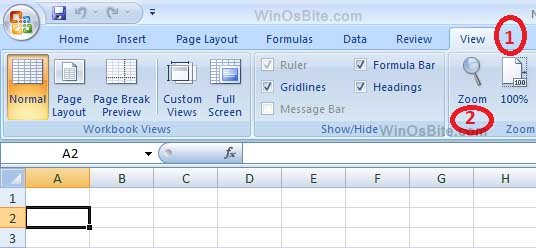
There is another method to use Zoom In/Out using few clicks
- Click on View in Menu bar
- Now, click on Zoom In> Modify
Summary of excel zoom shortcut
- Super Fastest: Ctrl+Mouse+Scral up/down
- 2nd Fastest: Alt-W-Q / Alt-V-Z
- 3rd Fastest: View >> + / – sign
- 4th slowest: View: Zoom
Other shortcuts tips:
Insert Column in Excel Sheet using Shortcut